Dashboard and query parameters in Honeybadger Insights
Insights dashboard widgets can now reference dashboard-level parameters in their queries. Simply update a parameter’s value, and every widget that references it updates automatically.
This enables you to reuse the same dashboard for different hosts, environments, customers, or other values without reconfiguring each widget individually. Here's an example of how to use parameters for system dashboards:
To add a parameter to a dashboard widget:
- Open the dashboard and click Edit.
- Click the … menu on the widget and choose Edit widget.
- Add a reference like
${hostname}anywhere in the widget’s query — for example,filter hostname::str == "${hostname}”. You can also assign a default value to the parameter. - When the editor prompts you, provide a value for the new parameter so the preview can render. Click Update to save the widget.
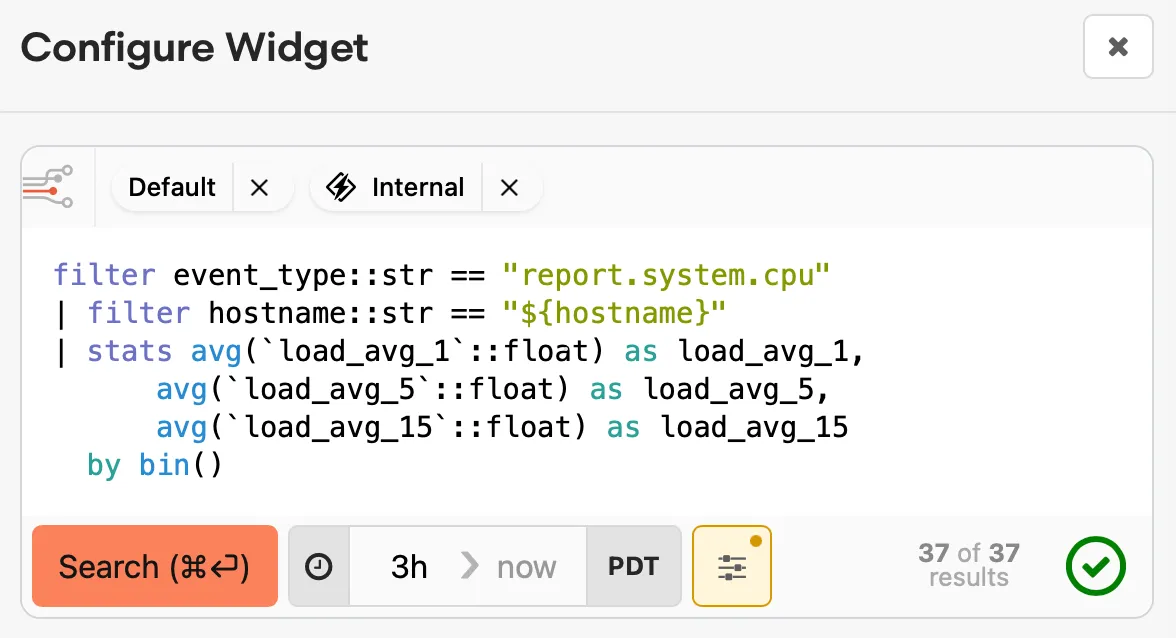
Once a parameter is added, there are three ways to set it:
- URL parameters — Add parameters directly to the URL (e.g.,
?hostname=web-01). Because parameters are URL-based, you can bookmark or share a link that already has the values filled in. - Parameters popover — Click the Parameters button (the slider icon in the dashboard toolbar, next to the date picker) to open a popover with a field for each parameter used on the dashboard.
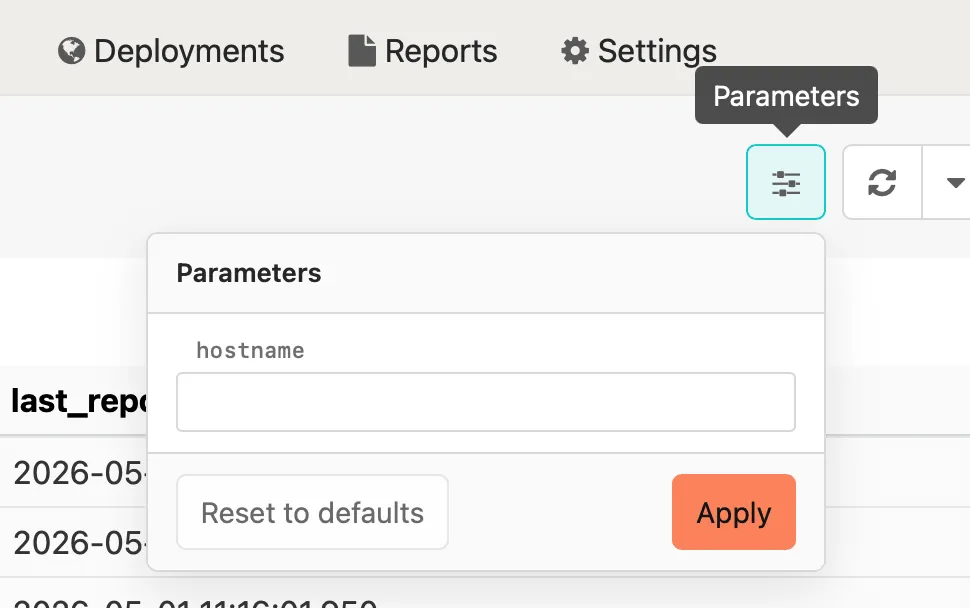
- From widget results — Click a field value in a widget’s results. If the field name matches a parameter used on the dashboard, you’ll see a “set parameter” option that updates every widget using that parameter.
You can read more about parameterized queries and how to use them in the documentation. Parameters can also be used in the standalone query page without creating a dashboard widget.
Try Honeybadger for FREE
Honeybadger is full-stack application monitoring that helps developers move fast and fix things. Get set up in minutes and check monitoring off your to-do list.
Easy 5-minute setup — No credit card required